 Skip to content
What Is the Difference Between Unsubscribe List and Suppression List
Learn what is the difference between unsubscribe list and suppression list, and how each affects email sending, permissions, and deliverability.
Start with the Reader’s Situation
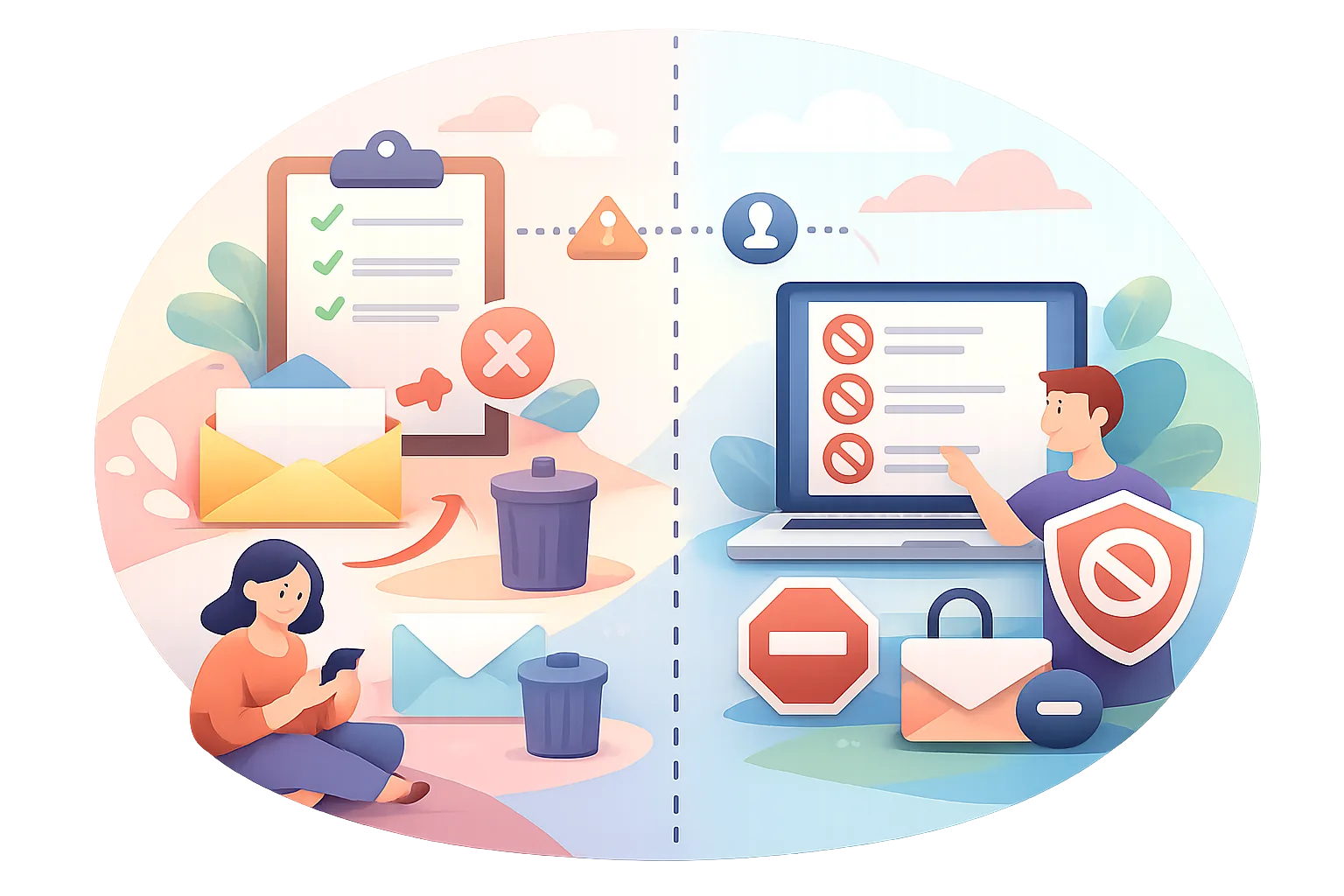
The confusion usually starts in one screen. A sender opens an email tool, sees both an unsubscribe list and a suppression list, and asks one plain question: what is the difference between unsubscribe list and suppression list.
The short answer is that the two lists can stop mail for different reasons. One usually reflects a person’s choice, and the other usually reflects a system rule. That sounds neat on paper. In practice, teams mix them up during a busy send.
Picture a Friday afternoon campaign. A contact opted out last month, but the address also bounced twice after a mailbox change. If that person is sitting on both lists, the next send should skip them either way, yet the reason still matters because it changes who may remove the block later and who should never be re-added without a fresh permission check.
This is why the label on the list matters. A name alone is not enough.
If your team handles both marketing and transactional messages, the difference becomes even sharper. A newsletter opt-out does not always mean the person should miss a password reset, while a suppression entry created for a hard bounce may have nothing to do with consent at all. That split affects daily operations.
Check Which Action the Contact Took
Start with the event that put the contact there. An unsubscribe usually begins with a click on an opt-out link, a preference-centre change, or a manual unsubscribe entry made by support after a request.
A suppression entry often starts somewhere else. The system may block an address after repeated bounces, a complaint, an invalid domain, or a compliance rule set by the sender. None of those actions means the person asked to leave the list in the usual sense.
Look for the trail. A contact who clicked “unsubscribe” has a clear user action, and most tools record the timestamp. A contact removed by support may show a note, ticket number, or operator name. A contact suppressed by deliverability logic may show a bounce code, complaint tag, or a rule name.
That tiny distinction saves time. It also avoids awkward mistakes, like reactivating someone who never wanted marketing email in the first place.
If the system does not show the event, ask for the log. Guessing is expensive.
One practical example helps. If a person replied to customer service saying “please stop sending promos,” and an agent marked them unsubscribed, the record should read as an opt-out. If the same address later triggers a mailbox-not-found error, the sending platform may add a separate suppression note because the bounce is now the operational problem.
Look at the List’s Effect in the Sending System
The next send tells you a lot. In many platforms, an unsubscribe list prevents future marketing mail from going out to that contact, while a suppression list blocks sends because of a specific condition such as bounce history, complaint history, or a compliance block.
That difference shows up in campaign prep. If the contact is on an unsubscribe list, the sender should not include them in a normal promotional blast. If the contact is on a suppression list, the system may block the message even if the sender manually adds the address to a segment.
Think of it this way: one list often reflects a deliberate opt-out, while the other acts like a safety stop. The safety stop can be permanent or temporary depending on the platform rules and the reason for suppression.
There is a consequence here. If your team treats every block as the same thing, you can confuse permission with delivery protection. That can lead to bad reporting, especially when a campaign shows “excluded” contacts and nobody can explain why 47 people were missing from the audience.
Some systems show this more clearly than others. If you want background on deliverability controls, YourTrend also covers Email Deliverability Best Practices: How to Improve Inbox Placement and Sender Reputation, which helps when suppression starts to affect send volume.
Ask one operational question: did the list block the email because the person opted out, or because the platform did not want to send? The answer changes the next step.
Confirm What Happens Across Message Types
Not every restriction applies to every email. Some systems block all marketing mail once a contact unsubscribes, yet still allow a transactional notice such as a receipt or password reset if policy permits.
That is why message type matters. A marketing campaign, a product announcement, and a service notice may sit in separate pipelines inside the same platform. One contact can be excluded from one pipeline and still remain eligible for another, depending on the account settings and the legal basis used.
Do not assume a global block unless the platform says so. A suppression rule may only apply to a single campaign category, a segment, or a sending domain. A different rule may cover all outgoing mail, including operational messages.
This gets messy fast. A customer may opt out of promotions but still need order updates. A compliance team may suppress an address across every category after a complaint. Both cases are valid, but the scope is not the same.
If your organisation sends both bulk and account-related mail, keep a written rule for each type. Three lines can prevent a lot of embarrassment.
For teams that use multiple channels, the same discipline helps with other message streams too. YourTrend’s Email Webhook Events for Transactional Email article is useful when message events need to stay in sync with delivery rules.
Review the CRM or ESP Record Labels
Open the contact profile before you touch the send list. Most email platforms show status labels, tags, or notes that tell you whether the contact is unsubscribed, suppressed, bounced, complained, or manually blocked.
Read the exact label, not your memory of it. “Unsubscribed” usually points to a permission choice. “Suppressed” often points to a rule or system event. “Bounced” can sit under suppression or as its own status, depending on the tool.
Audit notes matter too. A note dated 14 May with the words “user requested opt-out” means something very different from “auto-suppressed after hard bounce.” The first one is about preference. The second one is about send safety.
Some systems store labels in multiple places. One field may sit on the contact record, another on the mailing list, and a third inside the campaign exclusion rule. If those fields disagree, the platform can behave in a way that looks random to the sender.
That is the moment to check logs. A clean status trail beats a guess every time.
Teams that care about record quality often pair email status checks with tracking and compliance reviews. If that is your situation, YourTrend’s Email Tracking and Privacy Compliance page is a practical companion when the contact record needs a legal and technical read at the same time.
Decide What to Do Before Adding or Moving a Contact
Use a simple path. Step 1: confirm why the contact is blocked. Step 2: check which messages they should still receive. Step 3: decide whether the contact stays on unsubscribe, moves to suppression, or remains blocked only for one class of mail.
If the contact opted out, keep them on the unsubscribe list unless your policy clearly allows a changed preference or a re-subscription event. If the contact was blocked for a bounce, add or keep them on suppression until the delivery problem is fixed. If the contact must receive a permitted send, restore access only for that send and only if policy allows it.
Do not move contacts casually. A support agent might think they are helping by removing a suppression entry, but that action can re-open a contact who should have stayed off marketing mail. That mistake can create a complaint within minutes.
One concrete safeguard is a two-person check for restores above a certain volume. Even a small team can do this with a spreadsheet, a ticket note, or a manager approval field. The exact process matters less than having one.
When a restore is allowed, document the reason in the CRM. If the contact later asks why they received one message, you need more than “we thought it was fine.”
Spot Setup Mistakes That Make the Two Lists Look the Same
Several setup issues blur the difference. Duplicate fields are common. One field may say “opted out,” another may say “suppressed,” and both may be checked by the same automation rule.
Merged segments cause trouble too. If a campaign audience is built from three lists and a suppression rule sits on the parent audience, the sender may not see the exact reason a contact was removed. The result looks like one list when it is really three rules stacked together.
Automation can hide the truth as well. A workflow might unsubscribe a contact after a click, then add the same contact to a suppression group after a hard bounce. To the sender, that can look like duplicate blocking, but the triggers are different.
Another issue is naming. If a team names one list “do not mail” and another list “global suppression,” nobody can tell which one affects which send. Clear labels are boring, and boring is better than a cleanup job on launch day.
Platform defaults can create confusion too. Some tools suppress contacts automatically after complaints, while others require a manual rule. A new admin may not see the default until the first send fails, and by then the report is already off.
There is a practical fix. Write down which field each automation updates, which list each campaign checks, and which message types are excluded. Three columns are enough.
Use a Quick Check Before the Next Campaign
Before you press send, run a short checklist. First, confirm whether the contact is unsubscribed, suppressed, bounced, or manually blocked. Second, confirm which campaign type you are sending. Third, confirm whether the message is allowed for that status.
Check the contact record against the audience file. A mismatch can happen when a list is exported on Monday and the contact changes status on Tuesday. That one-day gap is enough to send to the wrong person.
Check the campaign rule screen too. If the audience builder uses segments, exclusions, or a saved suppression rule, the contact may be excluded even when the list export looks clean. The send log should show the final decision.
Then verify the reason for any exception. If a sender plans a permitted send to a suppressed contact, the approval should be visible in the notes. If the contact is on an unsubscribe list, do not override the block without a policy basis.
One last check helps when teams work quickly. Search the contact email address, not just the name. Names repeat. Email addresses do not.
If your team also sends promotional sequences and prefers one central reference for list hygiene, the ईमेल अनसब्सक्राइब सर्वश्रेष्ठ प्रथाएँ · YourTrend guide gives useful context for how opt-outs should be recorded before the next campaign goes out.
Keep the rule simple: unsubscribe means the person told you no, suppression means the system or policy told you stop, and the campaign should respect whichever one applies at the moment you send.
On this page
← All articlesOne click. It tells us what to write next.
No ratings yet — yours would be the first.
Comments
Comments are read before they appear.